

How to Collect Wedding Guest Photos: Before, During and After the Day
Your wedding day is likely one of the most documented events of your life. You have a professional photographer capturing the key moments, but you also have 100, 150, or 200 "secondary photographers" (your guests) with their smartphones capturing candid moments, laughter at the tables, and wild dance moves that the professional might not always see.
Help wedding guests share their photos with a QR, a clear invitation and a reminder before uploads close. Keep the selected files in Google Drive.
1. The Problem with Traditional Methods
A shared folder, messages and printed photos each need a different collection process. Decide where the final files should live and explain one clear upload method to guests. Do not assume that a QR code alone transfers photos: guests still choose and upload their files.
AlbumDrive gives guests one upload page and saves their selected files in your Google Drive. They do not need to join a group or share phone numbers to upload. Photo quality in a chat depends on the sending method; AlbumDrive uploads the selected photo file without recompressing it.
2. How to Receive Wedding Photos Without WhatsApp or Apps
Guests scan the QR code or open the link, select their files and upload from their browser without creating an account. The host signs in and connects their Google Drive account.
- Sign in as the host and create the wedding event.
- Connect your Google Drive account to save the uploaded files.
- Download the event QR and share it or the upload link with guests.
- Guests select their photos and upload from the browser without an account.
Short videos require Plus or Premium, host activation, and a maximum of 30 seconds and 100 MB. For some formats AlbumDrive saves the original and a compatible playback copy in Drive.
3. Advantages of Centralizing Photos in the Cloud
Selected photos are saved in the Drive account you connect. You can organize and download the files there; review sharing permissions before sharing links.
AlbumDrive uploads the photo file your guest selects without recompressing it. Download the saved file from your Drive when you need it.
Files are saved in the Google Drive account connected by the host. AlbumDrive uses the permissions needed to upload and display them. Some event folders are shared with anyone who has their link; technical processing or caching may be used for playback. Review the privacy policy and event settings before sharing sensitive content.
4. Tips to Get Your Guests to Participate
For this method to be a success, you need guests to know it exists. Here are some tips:
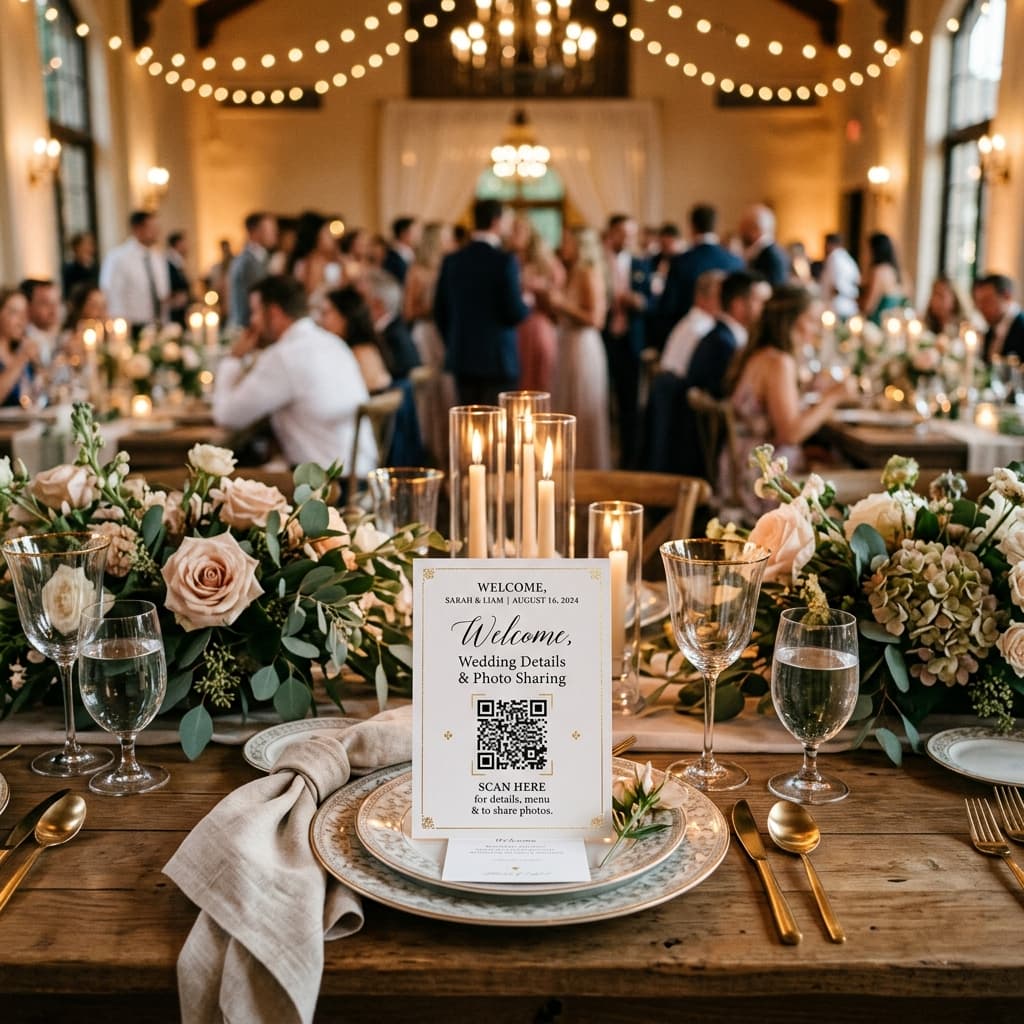
- Strategic Signage: Place QR codes on tables, at the open bar, and near the photo booth.
- DJ Announcement: Ask the DJ or MC to make a brief reminder mid-event: "Don't forget to upload your photos by scanning the QR on the tables!".
- Premium: With Premium, show guests’ uploaded photos on the venue screen. The screen needs an internet connection and the event’s projection link.
Before the wedding, explain what the album is for and test it with someone. During the reception, put the QR where guests can find it and invite them to choose a few photos. Afterwards, send the link once more before the upload window closes. Respect guests who prefer not to share images.
Conclusion
Try your shared album free with up to 30 photos over 3 days. Short videos require Plus or Premium and host activation.
The upload window is 3 days with Free and 30 days with Plus or Premium. When it ends, guests can no longer upload. Files already saved in your Google Drive are not deleted just because uploads close. Access to the AlbumDrive gallery also depends on the event remaining available, your settings and the Drive connection.